How to Set Up a Google Business Profile: Best Practice for 2026
Setting up a Google Business Profile is relatively simple. You create or claim your profile using a Google account, verify that you’re connected to the business so Google knows you’re not a spam account, and complete the information your potential customers need.
But there is a difference between setting up a profile and having one properly set up to help your business appear in local searches.
A complete and regularly updated Google Business Profile gives Google more information about your business and can help with your goals of getting to page one of Google. It also gives potential customers what they need to decide whether you are the right person or business for them. The more information they can see at first glance, the more they’re going to feel encouraged to trust you.
However, not every business is eligible for a profile; verification isn’t the same for everyone, and there are a few easy mistakes that can cause problems later.
Here’s how to set up a Google Business Profile properly in 2026.
What is a Google Business Profile?
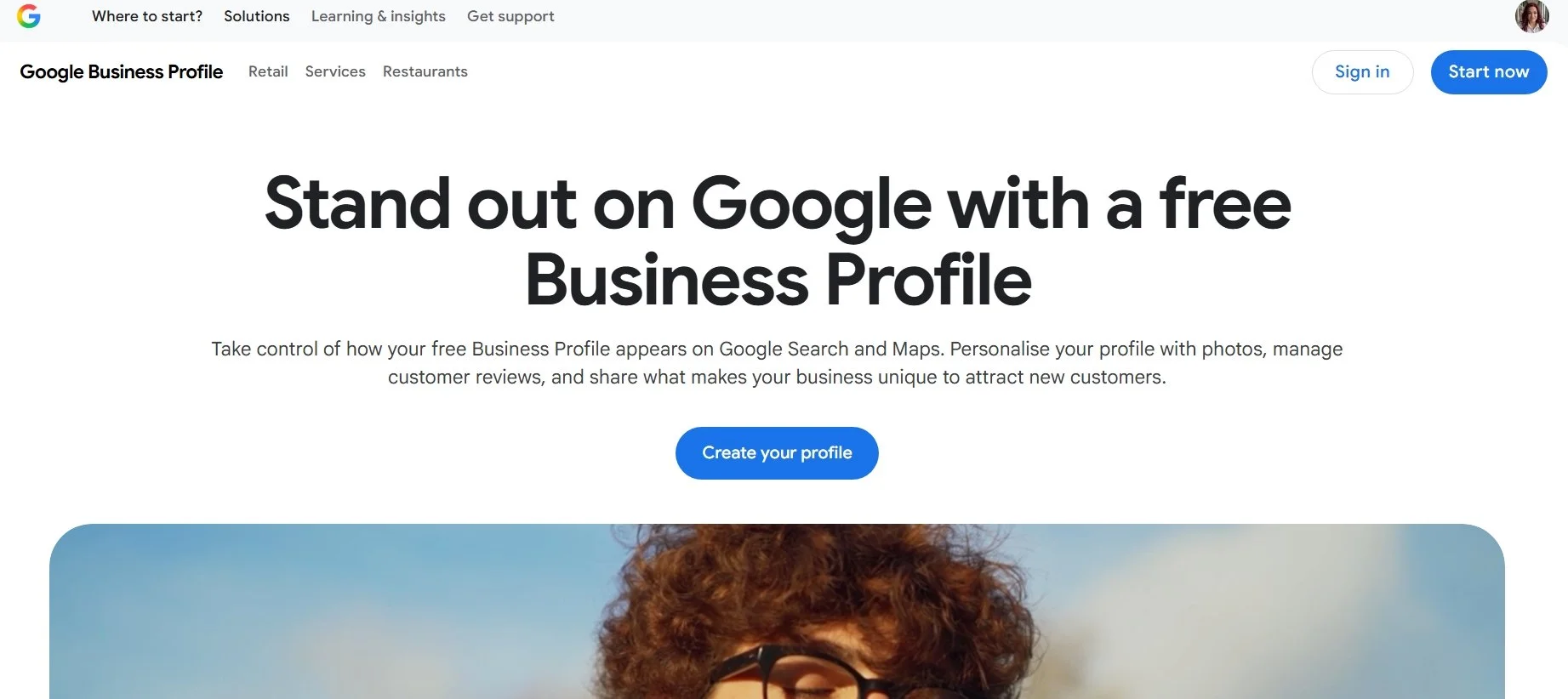
A Google Business Profile is the business listing that can appear when someone searches for your business on Google Search or in Google Maps.
It displays lots of information, depending on what you’ve entered into your profile, including:
Business name
Address (or service area – you can hide the first line of your address)
Opening hours
Phone number
Website
Services or products
Photographs and videos
Customer reviews
Social media profiles
Business updates
It was previously called Google My Business, which might ring a bell if you’ve been around for a while. But Google Business Profile is the name.
Having a profile doesn’t guarantee that your business will appear at the top of Google Maps or in the local results. Sorry about that! It does, however, give Google a much clearer and more authoritative source of information about your business.
You can read Google’s explanation of how local rankings work for more information.
Can anyone set up a Google Business Profile?
Really annoyingly - no. Before you start the process of signing up, check that your business is actually eligible.
Google Business Profiles are designed for businesses that have some kind of in-person contact with customers which can include:
Businesses with premises customers can visit
Service-area businesses that visit customers
Hybrid businesses that serve customers both at their premises and elsewhere
A business that operates entirely online and never meets customers in person usually isn’t eligible and might be why you’ve struggled to create a Google Business Profile.
So, if you’re an online coach, consultant or virtual assistant working exclusively through Zoom without any in person contact, unfortunately you can’t create a profile just because you want to appear in Google Maps (although it does happen so don’t quote me on it!).
Check the full Google Business Profile eligibility guidelines before creating your listing.
How to set up a Google Business Profile
1. Sign in using the right Google account
You need a Google account to create and manage your profile. You can create a google account with either your business address OR a Gmail address it’s entirely up to you.
Ideally do it through an account that you can control. But if someone is setting this u for you they can pass over full control to you later on and keep them as a manager. If you leave someone else set up as the owner then untangling ownership further down the line can be a right old faff.
2. Check whether your business already has a profile
Before creating anything new, search for your business name and location on both Google Search and Google Maps to see if a Google Business Profile already exists. It’s entirely possible that you set up a Google Business Profile a long time ago and forgot all about it!
Sometimes they get set up automatically as unverified.
If an unverified profile already exists, you can claim it. If somebody else has verified it, you will need to request ownership of the existing Business Profile. This can happen in businesses that have been around for a long time and profiles were set up by employees that have long since left.
Don’t create a second profile because you can’t access the first one yet! Duplicate profiles can confuse customers and split your business information and reviews across different listings.
If no profile exists, go to Google’s Business Profile setup page and select Add your business to Google and then follow the steps.
3. Enter your real business name
Use the name your business genuinely uses in the real world. It should match your website, signage, stationery and other official business information. This is where consistency in Google plays a big part.
This isn’t the time to add keywords or locations. Just your business name will do.
It might feel like clever SEO to add the location after your name, but it’s actually keyword stuffing, and it goes against Google’s guidelines for representing your business.
When your business name is consistent, it helps Google connect the information on your Business Profile with your website, social media profiles, directory listings, etc.
4. Choose your primary business category
Your primary category helps Google understand what your business is about. Don’t worry if you’ve got more than one category – you can add more But you do need to choose the MAIN category..
Then go ahead and add secondary categories.
For example I have SEO as my main category. And AEO, then Website Design as my secondary categories.
More categories do not automatically mean more visibility, so don’t start to add lots unnecessarily!
One really good tip is to remember to review your Google Business Profile regularly, as categories are probably the area that changes the most in a business as you pivot over the years. And as we’ve discovered, Google loves consistency. So keeping your profile up to date to match your website is going to be really beneficial for you.
5. Add your location or service area correctly
This is where your location is going to be listed if you have somewhere people can find you. If you’re a service-area business and you visit customers at their home or elsewhere, you can hide the address from the public. You can then add the towns, cities or areas you serve around you.
Google provides specific guidance on managing service areas and business addresses.
Be realistic about the locations you include. Adding half the country does not magically make your business local to all of it!
6. Add your contact information and website
Your contact details should match the information published on your website and other business profiles. This combination of your business name, address and phone number is often referred to in local SEO as NAP information.
If Google sees different phone numbers, addresses or business names across the internet, it becomes harder to know which information is correct. And your customers won’t know which information to trust either.
Your homepage is usually the website that most people add.
7. Complete Google’s verification process
Nearly there! Google needs to verify that your business is genuine and that you’re authorised to manage it.
Google automatically chooses verification options to confirm your location. They might ask for
A video recording
A live video call
Phone or text
Email
Postcard
Instant verification
Video verification may ask you to demonstrate your location by videoing your street, business equipment, signage and proof that you manage the business. For a service-area business, that might mean your branded vehicle, tools, work materials or access to business documents. I had a client recently who was asked for video verification and we’re still going through the motions a few months later to get her verfified! Another client had automatic verification with no problems and no evidence required.
Google says that verification reviews can take up to five working days after you complete the steps.
You can see the current methods and requirements in Google’s Business Profile verification guidance.
How to optimise your Google Business Profile
Now you’re verified let’s look at all the different features and sections you can complete to optimise your profile.
Complete every relevant section
Fill in as much accurate information as possible, including your:
Normal opening hours
Special or bank holiday hours
Business description
Services
Products, where relevant
Appointment or booking links
Accessibility information
Payment options
Amenities
Social media links
The fields available will vary depending on your chosen category.
Write a useful business description
Your description should explain what you do, who you help and where you operate in clear, natural language. I’m always talking about clarity – it’s one of my 5Cs for AEO. Remember the keywords that people are actually looking for.
Include the main services and locations that matter, but you don’t need to put in every single keyword you can think of.
Think about it like your about page – you’d cover things like:
What the business provides
Who it serves
Its main location or service area
Relevant specialisms
What makes it different
How long it has been established
Add individual services
Use the actual service names under each of your categories (not the creative programme or course name – that doesn’t mean anything to Google) and provide a short description. If you have service pages on your website you could use those as a guide.
So under my SEO main category I would have:
SEO strategy
Local SEO
Google Business Profile optimisation
SEO Copywriting
With a short description about what each one covers.
Upload good-quality photographs
Add photographs that help someone understand what the business is like. Get a feel for you, your services or products.
Depending on the business, this might include:
Your premises
The exterior and entrance
Your team
Your products
Examples of your work
Treatment or meeting rooms
Equipment
Behind-the-scenes images
Your logo and cover image
Use your own current photographs rather than filling it with generic stock images. Customers want to see you!
Keep adding new photographs over time, especially if your premises, team, products or branding change.
Add your social media profiles
Google Business Profile can display links to supported social media platforms which is perfect if that’s somewhere you hangout regularly.
This helps Google connect your Business Profile with your wider online presence too.
Ask for Google reviews
Third party reviews are great social proof and can help your business stand out in local search results.
Google says that review quantity and positive ratings can contribute to local prominence. You could put in place a regular process to ask your customers for Google Review.
You can grab a review link from your profile to send directly to people so that they don’t have to find you. You could send the review link in:
A follow-up email
An invoice email
A thank-you page
Your email signature
Printed aftercare information
Respond to reviews too! Use keywords in your reply. For example: “I’m so pleased you were happy with your SEO strategy! It was an absolute pleasure, and I can’t wait to work on your website design project next month”.
If someone complains in a review, don’t panic! A calm and helpful reply can sometimes do more for trust than a wall of unexplained five-star ratings, which we’re far more likely to be dubious about.
Publish Google updates
You can use updates on your Business Profile just like you would a social media page. I recommend that clients share similar content to their social media that would make sense on the Google Business Profile, so that it doesn’t become a whole new content. It also keeps it looking up to date and current.
Keep the profile accurate
As much as I would love to tell you that Google Business Profile is a set-it-up-once-and-forget-it job – we need it to remain accurate.
Set up:
Regular checks to make sure it’s up to date
Regular posts
Replies to reviews
What helps a Google Business Profile rank?
According to Google, the three main local ranking factors are:
Relevance
How closely the business matches what the person is searching for.
Accurate categories, detailed services, a clear business description and relevant website content
Distance
How far the business is from the person searching or the location included in their search.
You can’t optimise your way around geography! There ARE some things you can do locally but you’re limited. So look at what other searches you CAN optimise your website for.
Prominence
How established and well known the business appears to be.
Google may use signals including reviews, links to the website and information about the business found elsewhere online.
A Google Business Profile is one piece of your visibility
Your Google Business Profile is just one piece of the puzzle. Your website content, Google reviews, social profiles, directory listings, press and PR and links from other trusted websites all contribute to the wider picture of your business being this trusted entity.
Clarity also matters for traditional Google Search, local search and the answer engines like ChatGPT, using information from across the web to understand and recommend businesses.
Want to know how easy your business is for answer engines to understand?
Take the free AI Visibility Check and answer 25 simple questions about your website and online presence. You’ll discover how strong your AI visibility foundations are and the area you should focus on first.
FAQs: How to Set Up a Google Business Profile
Is it free to set up a Google Business Profile?
Yep! It’s free to add or claim an eligible Google Business Profile.
Can an online-only business have a Google Business Profile?
Usually not. To be eligible, a business normally needs to make in-person contact with customers during hours. A business that operates entirely online and never meets customers in person is generally not eligible.
Can I use my home address for a Google Business Profile?
You can use your home address to verify an eligible service-area business, but you should hide it from the public if customers do not visit you there. You can then display the areas you travel to instead.
How long does Google Business Profile verification take?
The time varies depending on the verification method and whether Google needs to review additional information. Google says its review can take up to five working days once the verification steps have been completed, although some profiles may be verified more quickly.
Why do I have to verify my Google Business Profile?
Verification confirms that the business is genuine and that you are authorised to manage its information. Otherwise there would be spam accounts all over Google! Once verified, you can control how your business information appears across Google Search and Google Maps.
What should I put in my Google Business Profile description?
Explain what the business does, who it serves, where it operates and any specialised services or niches that you’re in. Use natural language and include important services and locations. Try not to keyword stuff!
How many categories should I add to my Google Business Profile?
Choose one primary category and add any secondary categories you might have. Adding irrelevant categories is unlikely to help and can make the profile less accurate.
How often should I update my Google Business Profile?
Check it as often as you’d like, maybe a monthly check, and update it whenever your hours, services, location, contact details or business information change. You should also add special hours before bank holidays, reply to reviews and replace outdated photographs.
Do Google reviews help local SEO?
Generally yes – Google specifically says that review quantity and positive ratings can contribute to a business’s local prominence.
Author: Sam Milburn ACIM | Founder of Page One Studio | Associate of the Chartered Institute of Marketing
Search Engine Optimisation (SEO) and Answer Engine Optimisation (AEO) Expert