How (and why) you should set up Google Search Console
Index
Introduction
What does Google Search Console Do?
Other things you can do with Google Search Console
Step 1 – Set up and Verify Google Search Console
Step 2 – Add all your properties (websites) to Google Search Console
Step 3 – Add your sitemap to Google Search Console
How to use Google Search Console for Keyword Research
Conclusion
FAQs
Introduction
Before we get into this, let’s talk about what Google Search Console is and why everyone who has a website needs it, especially if you want to get to page one with SEO. (Don’t panic or worry about requiring a degree to do this, it’s really easy!)
Even if you don’t blog
Even if you’re not ‘doing’ SEO yet
Even if you’re a service-based business that gets all its work through referrals
Google Search Console will help you understand how Google sees your website and open up this whole new world of gentle visibility that doesn’t rely on your availability; instead, it relies on your website doing all the work for you.
Also, please be assured, you cannot break Google Search Console.
This isn’t a programme you install on your website that you have to keep up to date.
Nor do you need any technical knowledge.
Google and I will walk you through the Search Console setup process, and I’ll tell you all the IMPORTANT bits to look at on your dashboard and what they mean.
What does Google Search Console Do?
Google Search Console does a few things. If I had to put it into one sentence:
Google Search Console will tell you which of your pages appear when specific keyword search terms are typed into Google.
Google Search Console will tell you:
How many times your website page is seen in each keyword search listing (this is called impressions)
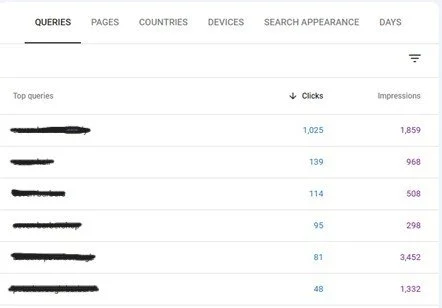
How many people click through to your website page from that search term
The day and time this happens
Other data around this, like which pages are trending up and down
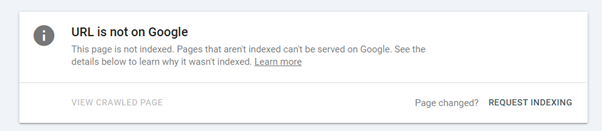
Pages that can’t be indexed
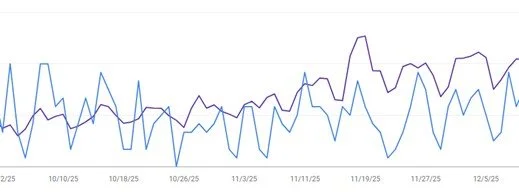
A graph, which is nice if you’re a visual data person
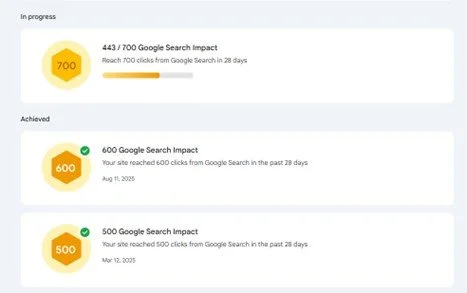
Achievements – you get little badges the more clicks you get. Kinda fun if you like that sort of stuff.
Other things you can do with Google Search Console
1 Add your sitemap
Your website's sitemap is a URL that lists all the pages linked to your website. It’s not strictly necessary to add this to your Google Search Console, since Google will eventually index your entire website. But it’s good practice as it means Google won't miss any of your pages because you’ve said:
‘Hey Google, here are all my pages!’
Once added, you shouldn’t need to do it again. (I show you how to do this further down.)
2 Inspect new URLS & ask Google to ‘REQUEST INDEXING’
Again, so long as your pages are linked to each other well, you don’t really need to ask Google Search Console to index new pages. Your sitemap should update automatically with all new URLs.
Still, if you want Google to index and crawl a page a bit more quickly (so you can see whether the keywords you’re trying to hit have had any effect), you can enter your new URL on the Google Search Console dashboard and after 3 or 4 days, Google will go and have a little crawl.
It’s a good habit to get into, as it builds momentum and ensures Google won't miss it.

Step 1 – Set up and Verify Google Search Console
So the first step is actually to set it up your Google Search Console account. Don’t worry. Not as tricky as it sounds.
You’ll need a Google account. Most of us have one of these. If you don’t, don’t worry, set one up. It can be under your business email, or you can have a Gmail account. Just remember which one it is if you have a few. (I do, and it’s a right pain having so many Google accounts!)
Once you’ve done that, you can set up your Google Search Console.
Head to the Google Search Console page.
Choose the Domain option below and enter your website address.
Google will ask you to verify ownership of your website (as you could do this with ANY website, of course! It has to be yours).
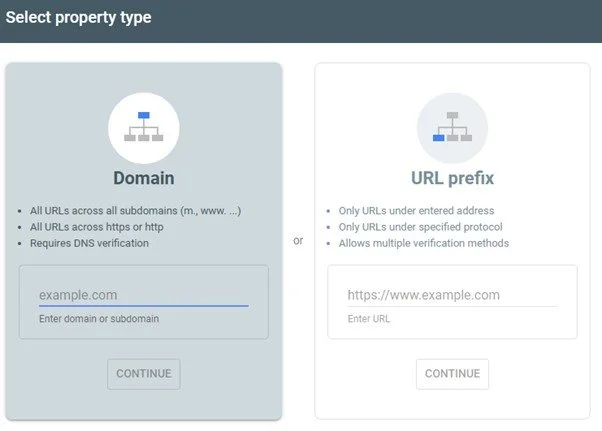
This means you will need to go into your DNS settings (these are in the place where you purchased your Website URL, for example, GoDaddy or 123.reg).
Google will walk you through the changes you need to make to your DNS.
Once your DNS settings have updated and Google connects, you’ll be able to see your Google Search Console dashboard, and Google will start to collect data.
NOTE: You won’t see any data on your dashboard PRIOR to set up, so don’t panic that it’s blank.
Step 2 – Add all your properties (websites) to Google Search Console
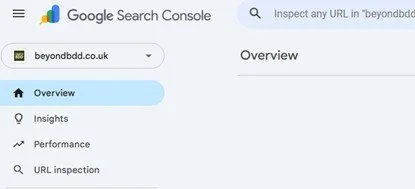
If you have more than one website, you can add them all under your Google Search Console. You can have as many properties as you want. You can also add other people as admins, and you can be added as an admin to OTHER people’s properties (websites).
These other properties will appear in the drop-down arrow on the top left of the dashboard.
Step 3 – Add your sitemap to Google Search Console
As we talked about above, adding a sitemap helps Google to ensure it indexes all of your pages. You don’t need to have created this as most website platforms already generate these for you. If you want to find the URL address for your sitemap, you should be able to find it in your platform's FAQs section.
Most popular ones are:
Wordpress: YourURL/sitemap.xml or /sitemap_index.xml
Squarespace: YourURL/sitemap.xml
Enter your sitemap URL in the section that says ‘sitemap’ on the left-hand side. The time it takes for Google to crawl your sitemap can vary hugely. In my experience, it takes less than a week. If it’s a big website, it might take a lot longer. We think Google prioritises high-quality content when indexing pages, so aim to have the best possible content on your website. This will help with future indexing. I find that my clients' new and updated pages tend to be indexed within 5 days.
How to use Google Search Console for Keyword Research
Now we’re getting to the handy bit. The bit you REALLY want Google Search Console for. Keyword Research.
Before we do, know that this is just ONE place I use for Keyword Research.
Other places I look for Keyword Research are
External software tools like Ubersuggest
This is my go-to for research, as it not only gives me other questions people ask on Google and associated keywords for the one I’m interested in, but also tells me how competitive those keywords are. Then I know whether that keyword is going to be a long-term challenge, a quick win, or one to give a miss.
My Website Platform
Recently, Google made a small update that upset SEO people around the world; instead of looking at ALL keywords that websites appear for in search results, they now focus only on page one results. Which is grand, but it only paints a small picture. My website platform (Squarespace) will tell me ALL the keywords my pages are being found for, even at position 99 (as will Ubersuggest), so I like to use them all in conjunction with each other to get a really clear all-around view.
Okay, now that we’ve got that clear, let's look at how to use Google Search Console for keywords.
What keywords are getting clickthroughs?
Optimise them
If you’ve got keywords that are getting clickthroughs on specific pages, make a note of those pages and go and optimise them for additional SEO. (You can use my Framework here to help you optimise the page.) If you continue to optimise that page and make minor tweaks, you will see the page start to improve in the search listings.
Add compelling CTAs
These are the pages that are getting organic traffic to your website, so make sure you're grabbing attention and have a way to capture those people. It might be the BEST page in the world in answering the search query, but once they’ve got all the info they need, will they go and explore the rest of your website and stumble upon your lead magnet? WE would hope so, but it's simple enough to put it on the most popular click-through pages on your website.
Which pages are getting good impressions but no clickthroughs?
If a page isn't getting the clickthroughs but good impressions, then it might be down to a few things.
It’s either not featuring high enough (so it needs more optimisation)
OR the Meta Title and Description need some more work to enoucrage the clickthrough.
I talk about those more in my Framework; essentially, your meta description is your CTA. The one people see in the search results. It’s what helps people decide whether to click your search result. And it matters hugely! So make sure you have one. And make it compelling. If you’ve not chosen one, Google will put in any old thing from the page it sees fit, and it might not make much sense.
Which keywords are coming up that are completely new to you?
People are searching for this keyword, something new that hadn’t occurred to you. So there are a few things you can try:
Check out the page it’s linking to, and update that for that keyword (only if that page isn’t ranking for any other keywords and you want this new one to be the primary focus). Go and cross-reference that keyword in Ubersuggest and see how many searches it’s getting and whether it’s an ‘easy’ or worthwhile term to get.
If you don’t want to optimise that page, then go and write some content on it on a brand new page.
You can start to see how this data can help you get golden feedback. This is how SEO experts like me start to use it to determine the next steps in visbility.
Conclusion
This is where your SEO journey to gentle visibility without the hustle starts. Getting your website to do the legwork it was made for. Not a pretty business card, but a tool and asset in your business, so that when you can’t be on social media, or you can’t get out there and network, you know your website is pulling its weight for you.
I built a framework that I use for all my clients called the DESIGN framework. I use it to make sure everything is covered when it comes to writing website content that optimises it for both Google AND your audience, because they matter too.
FAQS
-
Google Search Console will tell you which of your pages appear when specific keyword search terms are typed into Google. It gives you the data you need to make decisions about how to then optimise your website.
-
Yep! The only thing you need is a Google account. It’s totally free.
-
If you have a website it’s highly recommended so that you can make sure all of your website pages are being indexed correctly and use that data to make informed decisions about the content on your website. SEO is a powerful marketing tool that can help you get organic traffic to your website. Essentially it’s free marketing.
-
It varies greatly. In my experience about a week. And if you’re regularly indexing new pages of quality content they can take less than 5 days for Google to index.
-
Most sitemaps are your website address followed by /sitemap.xml but if in doubt head to your website platform’s FAQ or help section and it will tell you.